
The Phantom Port: Decoding Your MacBook's USB Disconnects
Even Apple, a USB pioneer, can stumble. Dive into why MacBooks sometimes miss USB devices, common fixes, and the global implications of connection friction.
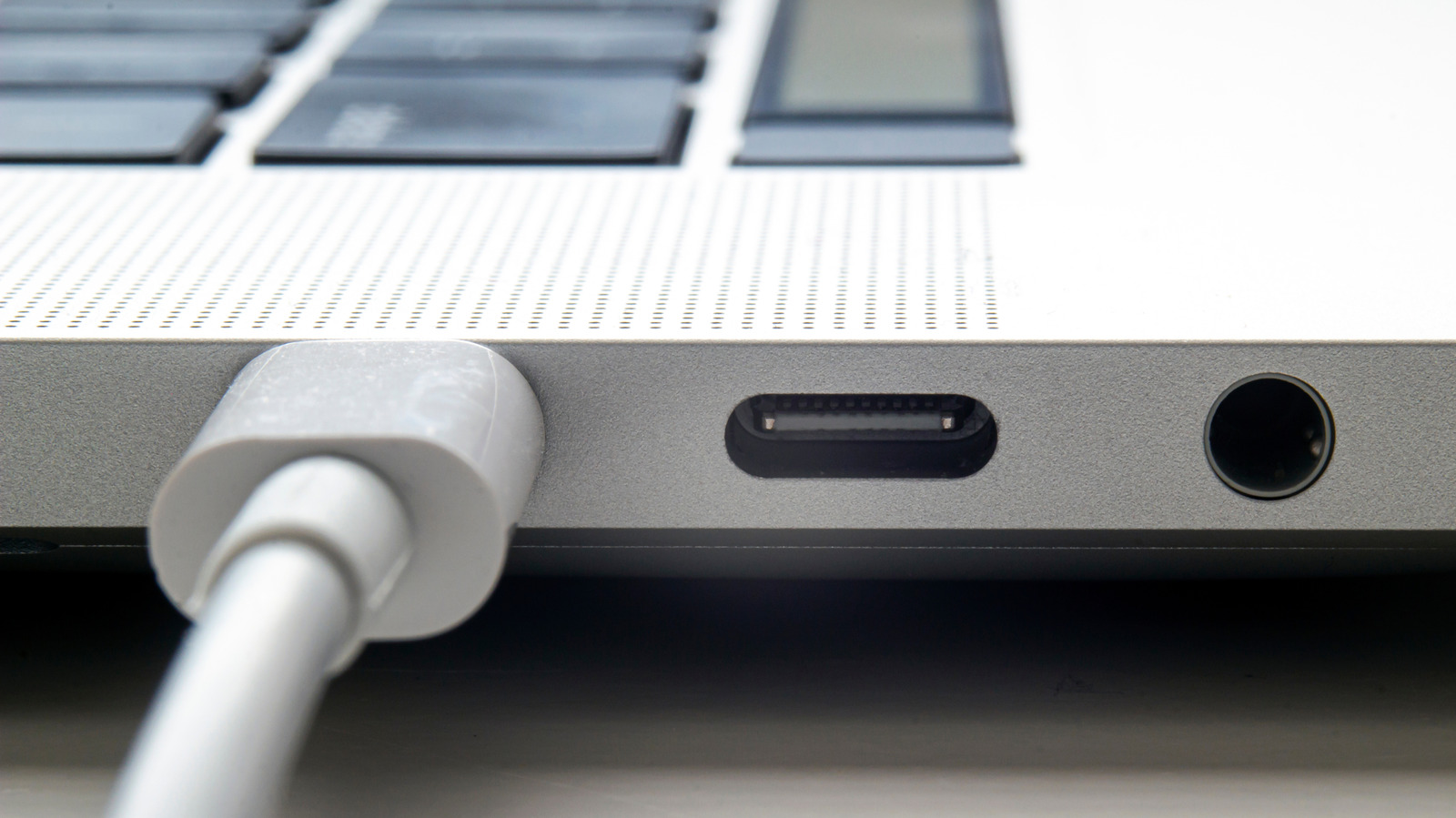
Apple, the erstwhile champion of the Universal Serial Bus, finds itself in an ironic dance with the very standard it helped popularize. Once the bold innovator that swept away a tangle of legacy connectors, Apple's journey with USB has circled back to a point where even a simple peripheral connection can, at times, become a maddeningly opaque affair for MacBook users.
The Persistent Peripheral Puzzle
For a company lauded for its seamless user experience, the occasional vanishing act of a USB device on macOS is a peculiar frustration. While modern Mac accessories are generally well-behaved, the digital ether sometimes swallows a perfectly good drive or gadget, leaving users scratching their heads. This isn't just a minor inconvenience; it speaks to the delicate balance between robust security protocols and the expectation of frictionless plug-and-play functionality in a globally interconnected device landscape.
The culprit often lies in one of two domains: the physical layer or macOS’s increasingly vigilant software gatekeepers. Damaged cables, insufficient power, or even a momentarily confused port can be to blame. More frequently, however, the issue traces back to macOS's inherent security design, which, by default, demands explicit permission for new accessories to connect and exchange data. This safeguard, while crucial for thwarting malware, also introduces a potential point of failure for legitimate devices if a user accidentally dismisses a prompt or forgets to grant access.
Untangling the Digital Wires
The good news is that most instances of a 'missing' USB device are solvable without a trip to the Genius Bar or an exorcist. Your first port of call should be the macOS permission settings. If a legitimate accessory isn't transmitting data, simply unplugging and re-inserting it often forces macOS to redisplay the crucial permission prompt. To sidestep future hassles, navigate to `Apple menu > System Settings > Privacy & Security`, then scroll to the `Accessories` section. Here, you can configure your Mac to `Ask for new accessories`, `Automatically allow when unlocked`, or, for those in highly secure environments, `Always allow`.
Should the issue persist, it's worth verifying if your Mac even 'sees' the device. Hold down the `Option` key and click `Apple menu > System Information`. Under the Hardware section, check if your accessory is listed. If it appears but isn't functioning, the problem might reside with the manufacturer's drivers or a power requirement exceeding your port's capacity. If it's completely invisible, however, you might be looking at a deeper hardware issue – or perhaps a phantom port after all.
The Global Angle
This seemingly niche Apple problem has broader implications for the global tech ecosystem. The push for universal standards, epitomized by the EU's mandate for USB-C on iPhones, highlights a worldwide demand for interoperability and reduced e-waste. When a market leader like Apple creates friction, even inadvertently, in common connectivity, it impacts accessory manufacturers, developer ecosystems, and, most importantly, consumers who increasingly expect their devices to work seamlessly regardless of brand. The security-versus-convenience dilemma plays out globally, with users in diverse markets expecting robust protection without arcane rituals to connect a simple flash drive. It underscores the ongoing tension between proprietary control and the democratizing force of open standards, a conversation that shapes purchasing decisions from Cupertino to Kuala Lumpur.
Source: Engadget

Silicon vs. Slop: The Battle for Photographic Authenticity Begins
As AI deepfakes flood the internet, CAIM1's prototype camera offers a hardware-backed cryptographic solution to restore trust in digital images. "The Byte…

Decentralized AI: The True Cost of Cutting the Cloud Cord
Want AI on your own terms? The Byte Republic explores the critical hardware specs and financial investment needed to run powerful LLMs directly on your PC.

Your Old Laptop's Encore: Unleashing Dual-Screen Productivity Without New Hardware
Unleash hidden potential! Learn how savvy tech users are transforming old laptops into valuable second monitors, boosting productivity and reducing e-waste…
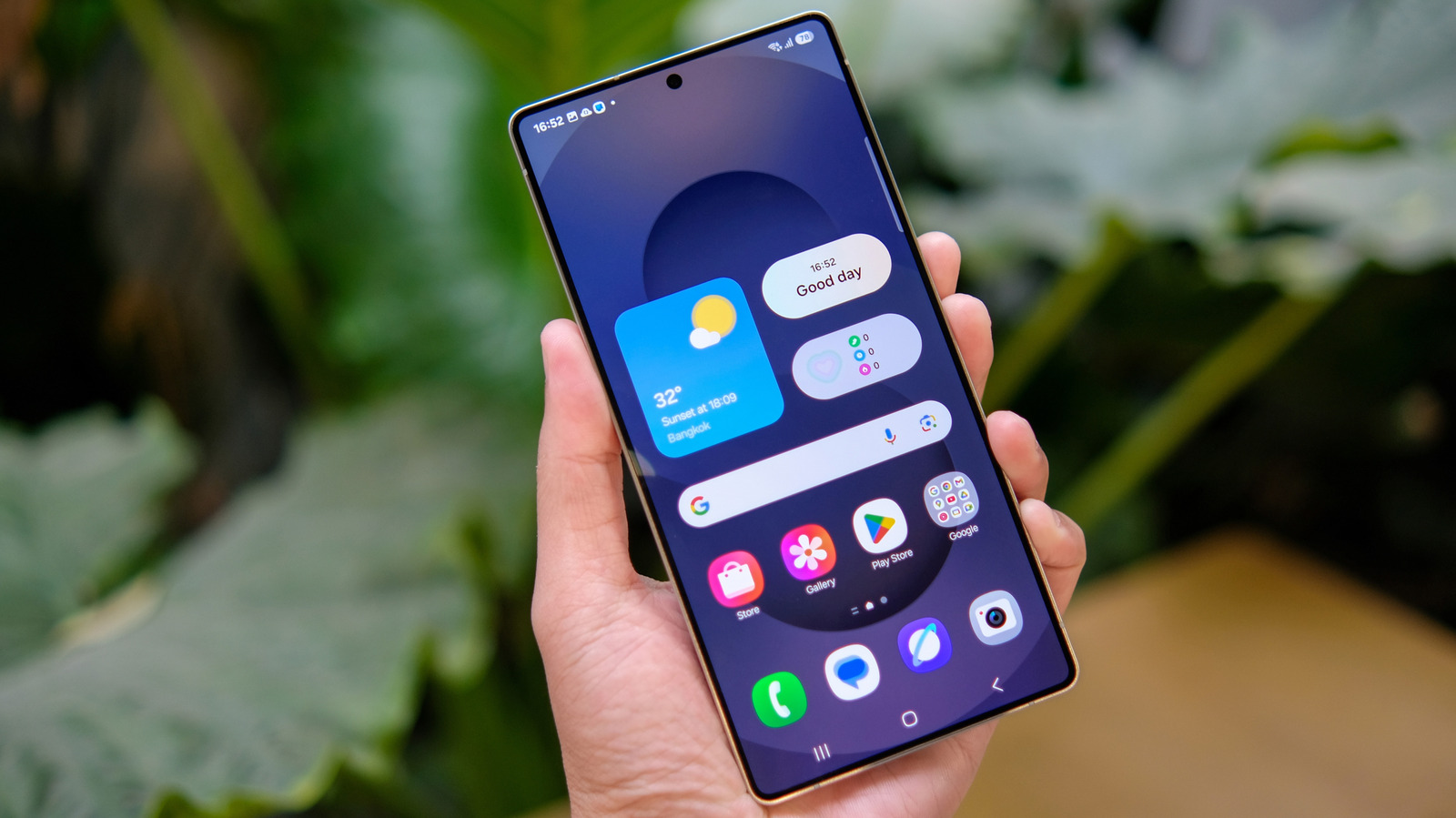
One UI's App Drawer: A Nod to Legacy in a Gesture-Driven Era
Samsung's One UI quietly removed the "all apps" button by default, yet offers a surprising olive branch to traditionalists. We unpack this subtle battleground…

AI's Architect Under Siege: Jensen Huang's Affair Sparks Espionage Probe
NVIDIA launches probe into CEO Jensen Huang over alleged Chinese spy efforts, linking a top executive's affair to national security concerns in the AI race.

Defying the Upgrade Cycle: Your Old Smartwatch Isn't Dead Yet
Don't toss that old smartwatch. Discover how to transform forgotten tech into a dedicated AI assistant, tracker, or note-taker, challenging Big Tech's upgrade…
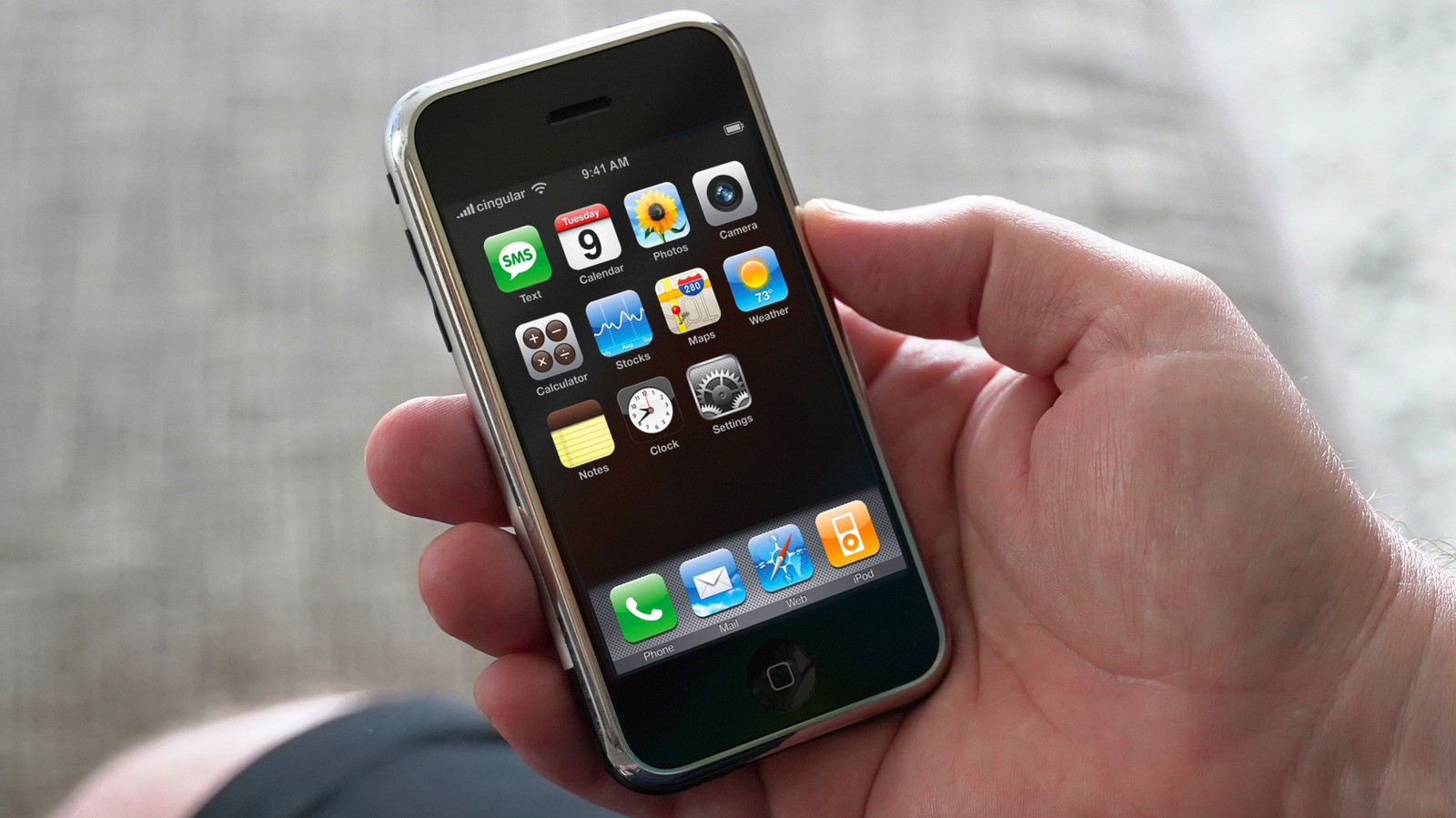
The iPhone's Enduring Illusion: What the 'Cheaper' Past Really Cost
Unpacking Apple's iPhone pricing from 2007 to today. The Byte Republic examines how inflation and carrier shifts redefine perceived value for global consumers.